 Curator Pal
How to add titles, descriptions and keywords to your stock footage, step by step
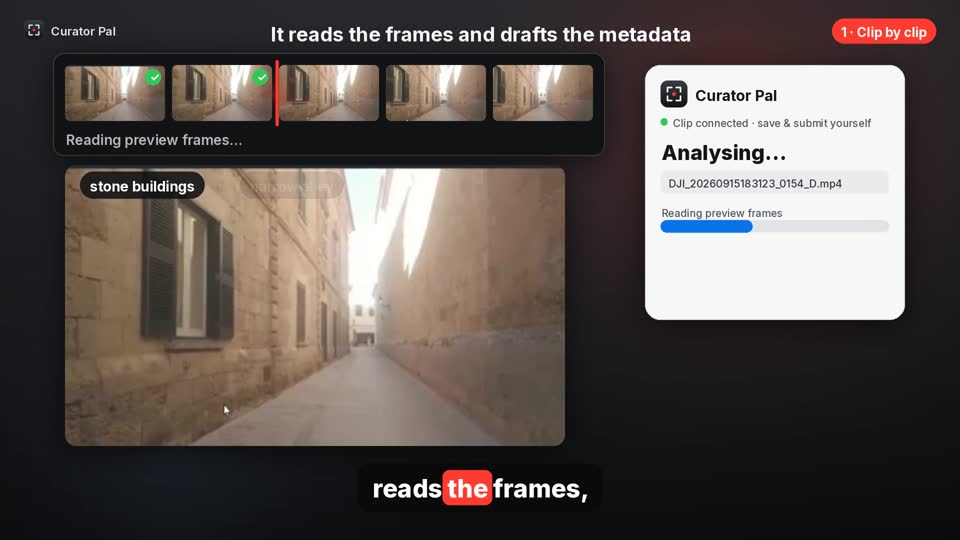
Writing a title, a description and a long list of keywords for every clip is the slowest part of selling stock footage, and the bit most people rush. This one-minute tutorial shows how Curator Pal, a Chrome extension for curators who upload to BlackBox Global, drafts that metadata for you from a few preview frames and fills it into the upload form.
There are two ways to use it: clip by clip in your workspace, or a whole folder of clips from your computer in one go. Either way, you read the draft, change anything that isn’t right, and press Submit yourself. Curator Pal never submits for you.
The video loads from YouTube in privacy-enhanced mode only when you press play. Watch on YouTube.
Chapters
- 0:00 What this covers
- 0:08 Clip by clip: press Edit, open Curator Pal, start the analysis
- 0:30 Review it, then submit yourself
- 0:39 Bulk: analyse a folder from your computer
- 0:53 Fill in matching clips by file name
- 1:01 Before you submit: the checklist
Method 1: clip by clip
- Upload your clips to your workspace as usual, then press Edit on one of them.
- Open the Curator Pal panel. It shows that the clip is connected and ready to analyse.
- Press Start analysis. Curator Pal plays through the clip, reads a few preview frames and drafts a title, a description and keywords.
- The draft is filled straight into the upload form’s title, description and keyword fields.
- Read it through and change anything that isn’t right. Then save, or submit when you’re happy.
Method 2: a whole folder from your computer
- Open the From your computer tab in the Curator Pal panel and choose a folder of clips.
- Chrome reads the clips on your computer and sends a few small preview frames from each one. Your original files stay on your computer.
- Analyse them all in one go, at one credit per clip.
- Upload the same clips to your workspace, then press Fill BlackBox in the panel.
- Every clip whose file name matches an analysed clip gets its metadata filled in.
Before you submit: a quick checklist
- Read the title and description out loud. If a video editor wouldn’t type those words into a search box, rewrite them.
- Remove any keyword that doesn’t fit the clip.
- Submit each clip yourself. Metadata can’t be edited after you submit, so check first.
Launch offer: use code CURATOR20 for 20% off your first purchase, on any credit pack or your first month of a plan. New customers only, ends 8 Nov.
Already written your metadata? Check it against the agency’s published limits with the free stock footage metadata checker. It runs in your browser, with no sign-up.
Curator Pal is independent and not affiliated with or endorsed by BlackBox Global.
Questions
Does Curator Pal submit clips for me?
No. It drafts and fills in the metadata, and you always save and submit yourself.
What gets sent for analysis?
A few small preview frames from each clip. Your original footage stays on your computer.
How much does it cost?
One credit per clip. Every account gets 5 free credits every month, no card needed. After that, credit packs start at 25 credits for £5, and monthly plans start at 150 credits for £10. Failed analyses are refunded automatically.